
If your reports live in Google Sheets, there is no need to export and paste every week. With Serpkai you paste a formula once and the sheet updates itself. That way you have the data from the Serpkai rank tracker where you already work.
In short
- You choose a project and a data type, create a link and paste an IMPORTDATA formula into your sheet.
- Google refreshes the formula roughly every hour.
- You can bring mobile or desktop keywords, 7-day rises and drops and Search Console queries.
- Available from the Basic plan.
Before you start
| Requirement | Detail |
|---|---|
| Plan | Basic or higher |
| Sheet | An empty Google Sheets file or a new tab |
| Time | About 2 minutes |
Step 1: create the link in Serpkai
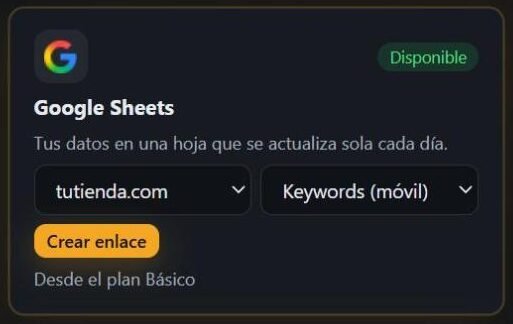
- Open Integrations in the dashboard.
- On the Google Sheets card, choose the project.
- Choose the data you want: mobile keywords, desktop keywords, 7-day rises and drops or Search Console queries.
- Click Create link.
Step 2: paste the formula into your sheet
The dashboard gives you a formula like this one (with your link):
=IMPORTDATA("https://…/v1/sheets/ss_…/projects/…/keywords")- Copy the formula.
- Paste it into cell A1 of an empty tab.
- Wait a few seconds: the columns with your data will appear.
What you can build with the sheet
- Weekly client report: one tab with the data and another with tables and charts that update themselves.
- Tracking a group of keywords: with FILTER or VLOOKUP you keep only the ones you care about.
- Base for Looker Studio: the same sheet works as the source for a Looker Studio dashboard.
Tip
- Don’t write in the tab that holds the formula: do your calculations in another tab that reads from it.
- If you want to keep history, copy the values into another tab once a week.
Common errors and how to fix them
| Problem | Likely cause | Solution |
|---|---|---|
| The cell shows a loading error | The link was copied incorrectly or has been regenerated | Create the link again and paste the new formula |
| The data doesn’t change | Google refreshes IMPORTDATA roughly every hour | Wait or reopen the sheet |
| Old formulas stopped working | A new link was generated | Generating a new one invalidates the previous one: update the formulas |
| The card doesn’t appear active | Your plan is Free | Google Sheets is available from the Basic plan |
Good practices
- Treat the link like a password: don’t share it outside your team.
- Use one tab per project and data type.
- Name the tabs after the project so you don’t get lost.
No card · No commitment
Frequently asked questions
How often does the sheet update?
Google refreshes the formula roughly every hour; the data changes each time Serpkai runs a rank check.
Can I have several sheets?
Yes: you can create one formula per project and per data type.
Is the link secure?
It works like a read-only password. If you think it has been shared, generate a new one and the previous one will stop working.
From which plan is it available?
From the Basic plan.
Can I bring Search Console data into the sheet?
Yes. When creating the link, choose “Search Console: queries” as the data type and the formula will bring your queries with clicks and impressions.
You might also like
Try it with your website
Create your account, add your website and bring your rankings into Google Sheets in two minutes.
Start freeSee plans