
Looker Studio is the easiest way to show SEO to a client or to management: clear charts, filters and a link that updates itself. With Serpkai and a Google Sheets file as a bridge, your rankings report is built once and you never touch it again. It is ideal if you manage several clients, as we explain in Serpkai for agencies.
In short
- The data source is a Google Sheets file with the Serpkai formula.
- In Looker Studio you add that sheet as a source and build the charts.
- The report updates when the sheet updates.
- Available from the Pro plan.
Before you start
| Requirement | Detail |
|---|---|
| Plan | Pro or higher |
| Google Sheets file | With the Serpkai formula (see how to create it) |
| Looker Studio | Free, with your Google account |
| Time | 10 to 20 minutes for a first report |
The three steps
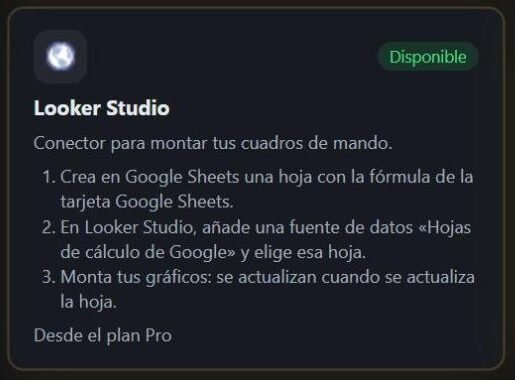
- Create a Google Sheets file with the formula from the Google Sheets card.
- In Looker Studio, add a “Google Sheets” data source and choose that sheet.
- Build your charts: they update when the sheet updates.
Which charts to include in an SEO report
| Chart | What it is for |
|---|---|
| Keywords table with position and change | See at a glance what goes up and what goes down |
| Bars by range (Top 3, Top 10, Top 30) | Measure the project’s overall progress |
| List of 7-day rises and drops | Explain the week’s changes |
| Search Console table (clicks and impressions) | Relate rankings to real traffic |
Presentation tip
- Put 3 or 4 key figures at the top (keywords in Top 3, in Top 10, weekly change) and the detail below.
- Add a filter by tag or URL if the client has several sections.
How to share it with a client
- Use Looker Studio’s “Share” with read-only permission.
- Schedule email delivery from Looker Studio if the client prefers to receive it.
- Keep one sheet per client so data doesn’t get mixed.
Common errors and how to fix them
| Problem | Likely cause | Solution |
|---|---|---|
| Looker Studio doesn’t see the new data | The sheet hasn’t refreshed yet | Wait for Google to update the formula (roughly every hour) and click “Refresh data” |
| Fields appear as text | Looker Studio hasn’t detected the type | In the data source, change the column type to number or date |
| The report breaks when the link changes | A new link was generated in Serpkai | Update the formula in the sheet; Looker Studio keeps reading the same sheet |
Good practices
- Create the sheet and the source once and duplicate the report for each client.
- Use the same colours in every report so they are recognisable.
- Review the report after the first check of the month to make sure everything adds up.
No card · No commitment
Frequently asked questions
Do I need to code?
No. You just paste a formula into Google Sheets and choose that sheet as the source in Looker Studio.
Does it update itself?
Yes, whenever the Google Sheets file updates, which Google refreshes roughly every hour.
From which plan is it available?
From Serpkai’s Pro plan. Looker Studio is free.
Can I use it for several clients?
Yes: create one project and one sheet per client and duplicate the report.
Can I schedule the report to be sent?
Yes. From Looker Studio you can schedule the report to be emailed to your clients or your team.
You might also like
Try it with your website
Create your account, add your client’s website and build their Looker Studio report today.
Start freeSee plans