Daily rankings tell you where you appear on Google; Search Console tells you how many people see you and how many click. In Serpkai you can bring both together in the same table to decide which keyword to work on first. In this guide we explain how to connect it, what data you will see and how to fix the most common problems. That data appears in the Search Console section of the dashboard.
In short
- It connects in two steps: your Google account in Integrations and the property in each project’s settings.
- The permission is read-only: Serpkai cannot change anything in your Search Console.
- You will see clicks, impressions, CTR and average position by keyword and by URL, next to the rank tracker’s daily position.
- It is included in every plan, including Free.
Why combine Search Console with your rankings
A position without traffic doesn’t pay the bills, and a click without context explains nothing. By combining both:
- You spot keywords in positions 4 to 10 with lots of impressions: they are the ones that would gain the most traffic by climbing a little.
- You see when CTR drops without the position dropping, a sign that something on the results page (like an AI Overview) is taking your clicks.
- You discover queries you already appear for but don’t track yet, so you can add them.
Search Console measures what happens on Google; the rank tracker measures where you are every day and against whom. Together they give you the what and the why.
Before you start
| Requirement | Detail |
|---|---|
| Plan | Any, including Free |
| Google account | With access to your website’s Search Console property (as owner or user) |
| Serpkai project | With the website already created |
| Time | About 2 minutes |
Step 1: connect your Google account
- In the dashboard, open Integrations.
- On the Google Search Console card, click Connect with Google.
- Choose the Google account that has access to your website and accept the read-only permission.
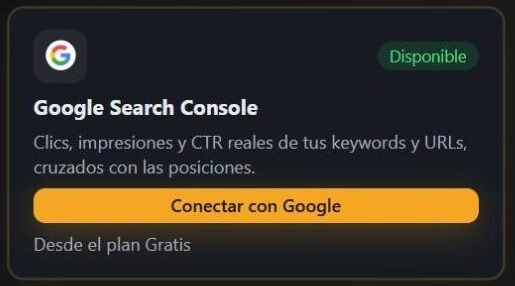
When you return to the dashboard, the card will show the connected account. You can disconnect it whenever you want from the same place.
Step 2: choose the property in each project
- Go into your project and open Settings.
- In the Google Search Console and GA4, choose the property for that website.
- Save. From then on, the dashboard pulls the data once a day.
If you have several websites, repeat this step in each project. Each one can use a different property.
What data you will see and where
| Data | Where it appears | Period |
|---|---|---|
| Clicks and impressions by keyword | Project keywords table | Last 28 days |
| CTR and Google average position | Keywords table and each keyword’s detail | Last 28 days |
| Data by URL | URLs tab | Last 28 days |
| Queries you don’t track yet | Discover | Last 28 days |
Keep in mind
- The Search Console average position doesn’t match the daily position: it is an average of all impressions in the period, across all countries and devices the property includes.
- Search Console publishes data with a delay of about two days.
What you can do with this data
- Prioritise: sort keywords between positions 4 and 10 by impressions and start with the ones users see most.
- Spot CTR losses: if the position holds and clicks fall, review the title, the meta description and what has appeared on the SERP.
- Expand tracking: add the queries with impressions shown in Discover to the rank tracker.
- Ask the AI: with the Claude connector you can ask “which Search Console queries have lost clicks this month?”.
Common errors and how to fix them
| Problem | Likely cause | Solution |
|---|---|---|
| My property doesn’t appear in the list | The connected Google account doesn’t have access to that property | Connect the right account or request access in Search Console › Settings › Users and permissions |
| The data takes a while | Search Console publishes with a delay of about two days | This is normal; the data updates itself every day |
| The average position doesn’t match the daily one | They are different measures | Use the daily one for tracking and Search Console’s as context |
| I have changed Google account | The connection still uses the previous one | Disconnect in Integrations and connect again with the new one |
Good practices
- Use a Domain property if you have one: it includes every variant (www, non-www, http and https).
- Once a week, review the keywords with the most impressions outside the Top 3.
- Combine this data with traffic value to prioritise in euros.
No card · No commitment
Frequently asked questions
Can Serpkai change my Search Console?
No. The permission you grant is read-only: Serpkai reads the data but cannot change anything in your property.
Can I disconnect it?
Yes, at any time from the Search Console card in Integrations, with the Disconnect button.
Does it cost anything?
No. The Search Console connection is included in every plan, including Free.
Why doesn’t the Search Console position match Serpkai’s?
Search Console gives an average of all impressions in the period; Serpkai measures the real position in a specific country, language and device every day.
Can I connect several Search Console properties?
Yes. You connect your Google account once and then choose a different property in each project’s settings.
You might also like
Try it with your website
Create your free account, add your website and connect Search Console in two minutes. No card.
Start freeSee plans