
Nobody opens a dashboard every day. That is why Serpkai can send your rankings summary to a Microsoft Teams channel, where your team already works. The data comes from the Serpkai rank tracker, which checks your keywords every day.
In short
- You paste a Microsoft Teams channel’s incoming webhook URL into Serpkai.
- Every morning, if there have been changes, you get a summary: what rises, what drops and what enters or leaves the Top 3 and the Top 10.
- You can send all your projects or a specific one to each channel.
- Available from the Basic plan.
What the daily summary includes
| Line | What it means |
|---|---|
| Enter the Top 3 | Keywords that are now in the top three positions |
| Leave the Top 3 | Keywords that have lost the podium |
| Enter the Top 10 | Keywords that reach the first page |
| Leave the Top 10 | Keywords that fall off the first page |
| ▲ Up / ▼ Down | The main rises and drops, with their position before and now |
Each message includes the button Open in the dashboard to go straight to the project.
Before you start
| Requirement | Detail |
|---|---|
| Plan | Basic or higher |
| Permission in Microsoft Teams | To add an integration to a channel |
| Time | About 3 minutes |
Step 1: get the URL in Microsoft Teams
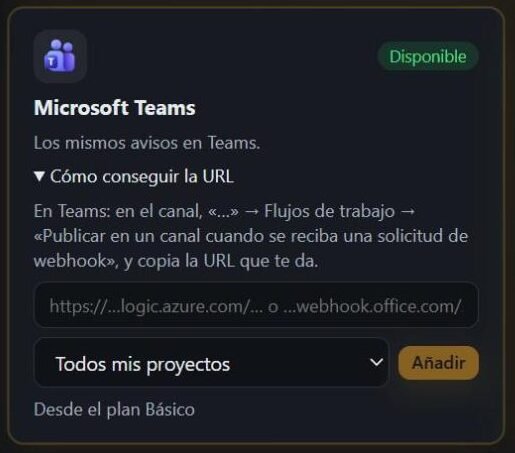
In Teams: in the channel, click “…” › Workflows and choose “Post to a channel when a webhook request is received”. When you finish, copy the URL it gives you.
The URL looks like this: https://…logic.azure.com/… o …webhook.office.com/….
Step 2: paste it into Serpkai
- In Integrations, find the Microsoft Teams card and paste the URL.
- Choose “All my projects” or a specific one.
- Click Add and then Send test to check that it arrives.
How to organise alerts in a team
- Create an SEO-only channel so alerts don’t get lost among other messages.
- If you manage several clients, use one channel per client and send each one only its project.
- Combine the alert with the Claude connector: the alert tells you what happened and Claude helps you understand why.
Common errors and how to fix them
| Problem | Likely cause | Solution |
|---|---|---|
| The test fails | The URL is incomplete or the integration has been disabled | Copy the full URL again and check that the integration is still active in Microsoft Teams |
| It has stopped arriving | If deliveries fail several times in a row, the destination is paused | Click “Send test” to reactivate it |
| Nothing arrived today | There have been no changes | The summary is only sent when there are movements |
Good practices
- Mute the channel outside working hours if you don’t want notifications.
- Review the week’s alerts every Monday to spot trends.
- Use the dashboard’s monthly report for detail; the alert is for reacting quickly.
No card · No commitment
Frequently asked questions
When does the summary arrive?
Every morning, and only if your rankings have changed.
Can I send alerts to several channels?
Yes: add one URL per channel and choose which project goes to each one.
From which plan is it available?
From the Basic plan.
What happens if I delete the integration?
Serpkai stops sending alerts to that channel. You can add it again whenever you want.
Does it work with the old Teams connectors?
Serpkai accepts URLs from Teams workflows and from classic Office webhooks. If Microsoft retires a connector type, create the new workflow and paste the URL.
You might also like
Try it with your website
Create your account, add your website and get your first Microsoft Teams summary tomorrow.
Start freeSee plans